Your Inoreader feeds, on e‑ink.

InoInk turns a Kobo e-reader into a dedicated Inoreader reader. Skim the newsfeed, save what matters, and read it later in proper book typography, offline, away from the browser tabs.

Download the latest release Read the docs

Free and open source (AGPL). Unofficial: not affiliated with Inoreader or Rakuten Kobo.

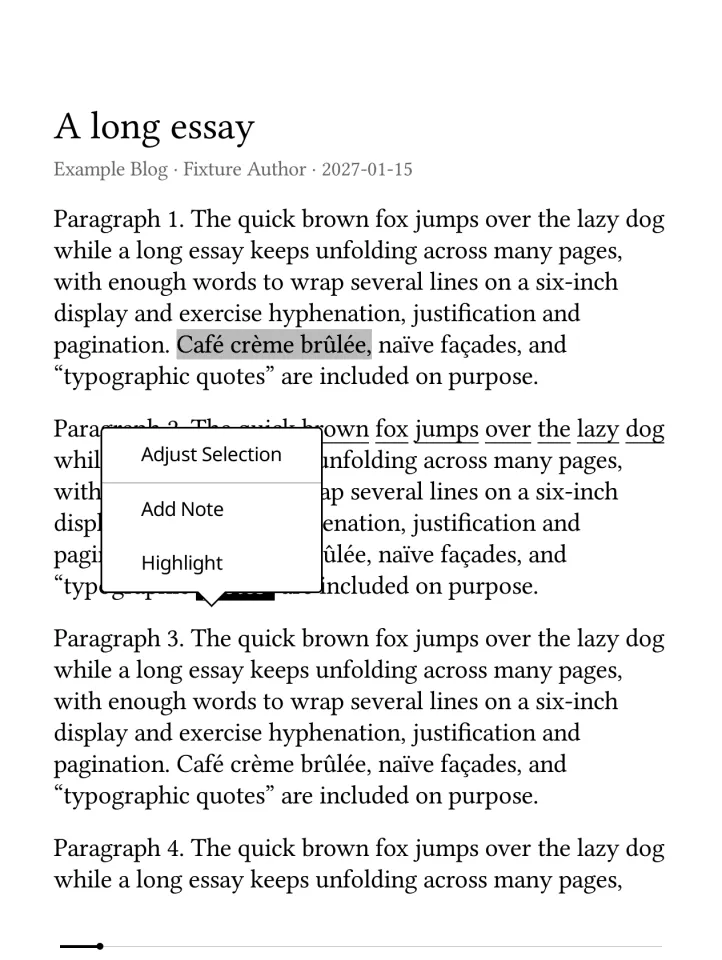
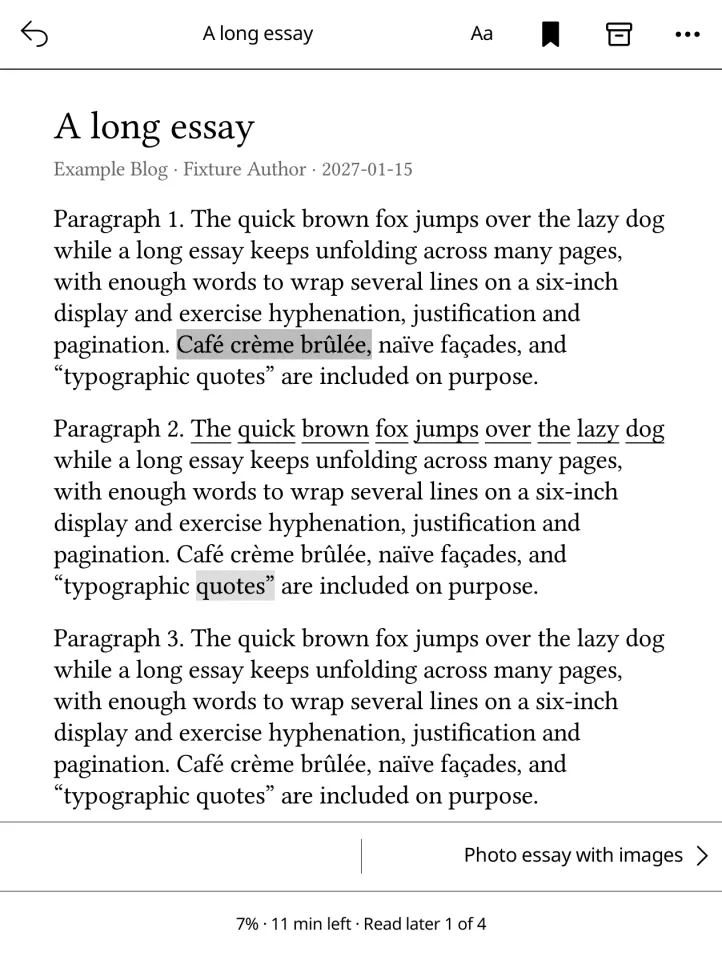
An article in InoInk with a highlight and an underlined Inoreader annotation

Built around how Inoreader is used

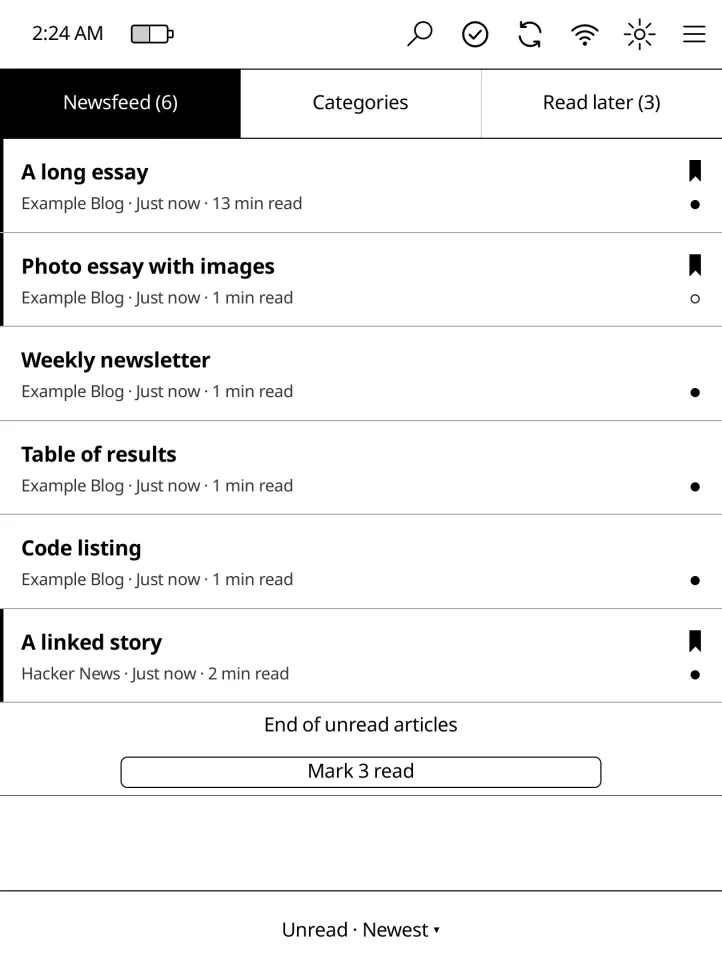
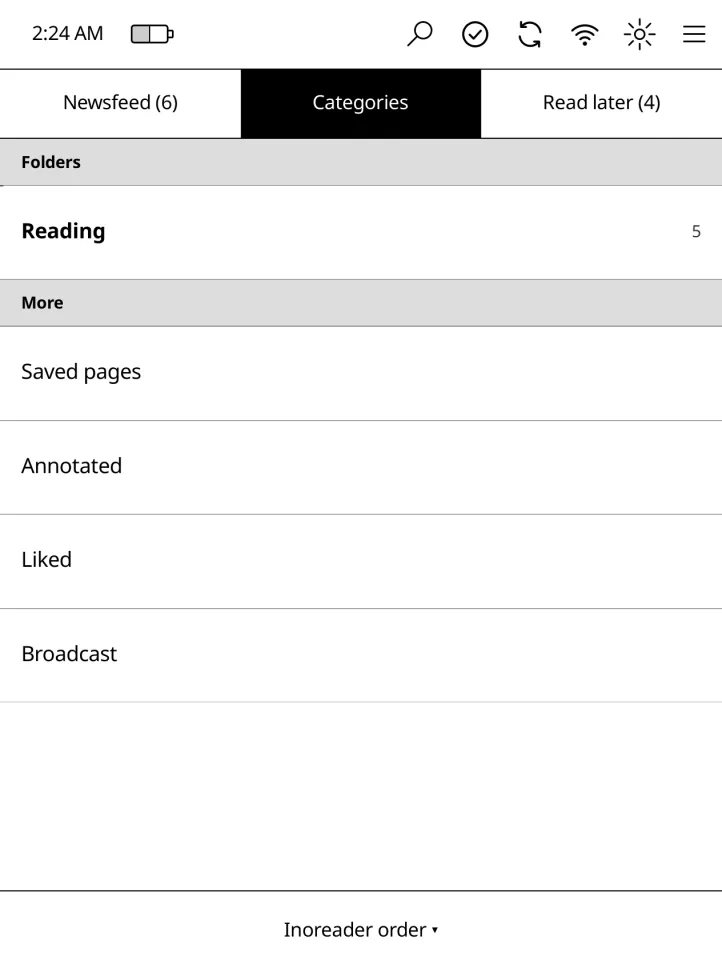
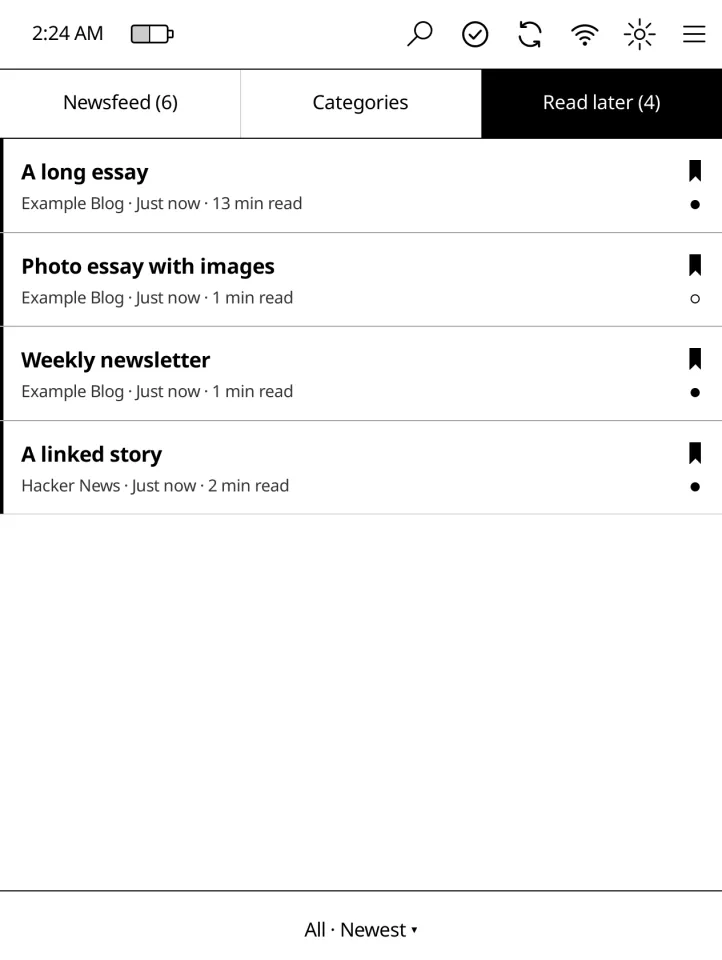
Newsfeed, Categories, Read later

The same three places you know from Inoreader. Tap a headline to read it, tap its ribbon to save it for later, hold it for more, such as marking everything up to it as read. Each view remembers its own filter, grouping and sort, and every list tells you how many pages it has.

Reading made for e-ink

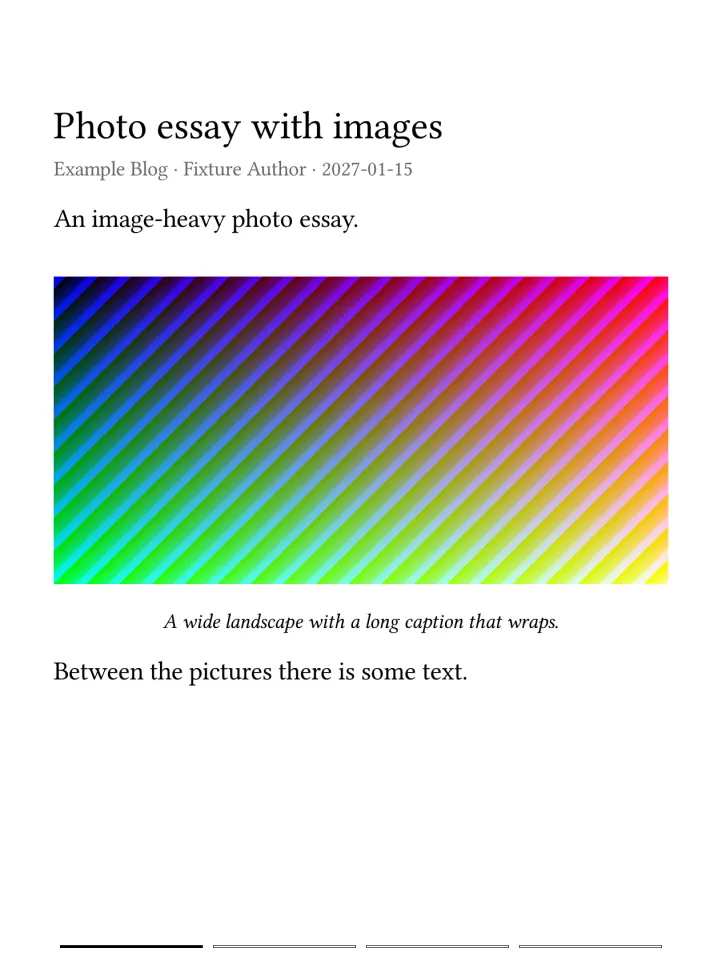
Plato's typesetting with justification and hyphenation in the article's own language, curly quotes and proper dashes, and an Aa panel for font, size, spacing, margins and alignment. Page turns by tap, swipe or button, the title in the top margin, and a quiet bar that shows one segment per page when the article is short enough to count.

Highlights and notes

Hold a word to highlight it or add a note. Annotations you made in Inoreader show up underlined in the text. Export yours as Markdown or Readwise-ready JSON.

Offline first

Text and colour images are cached on the Kobo. Every change is saved on the device first and sent to Inoreader when Wi-Fi is back. Nothing is lost when the network is not.

One article after another

Swipe up for the next article in the list and down for the previous one, which reopens where you left it; the neighbours download while you read. Nothing is marked read until you say so. At the end of the newsfeed, mark everything you skimmed as read in one tap (saved articles stay unread).

The whole link, not the teaser

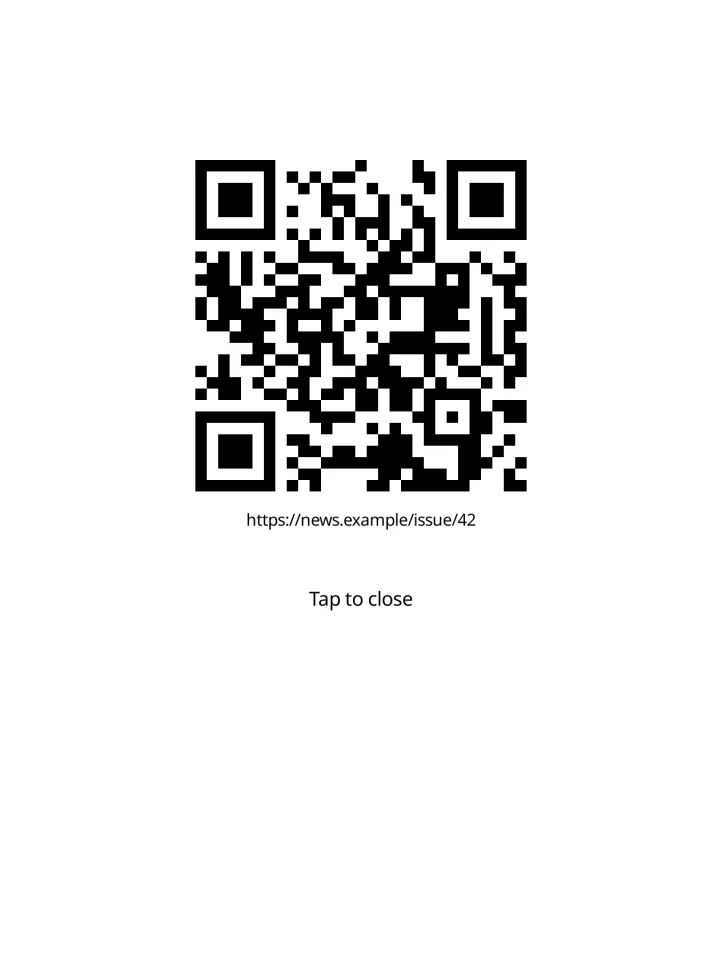
Feeds that send only a teaser open as the full article, and InoInk learns which feeds do. Hacker News and Lobsters posts open as the linked article, with the discussion one tap away. Tap any link for a clean reading view; hold it for a QR code to open on your phone.

Your account, directly

InoInk talks to Inoreader's public API with your own app registration. No server, no browser extension, no read-later service in between. Your keys stay encrypted on the Kobo, and a sync with nothing new costs a single request; Settings shows today's budget.

Kobo conveniences

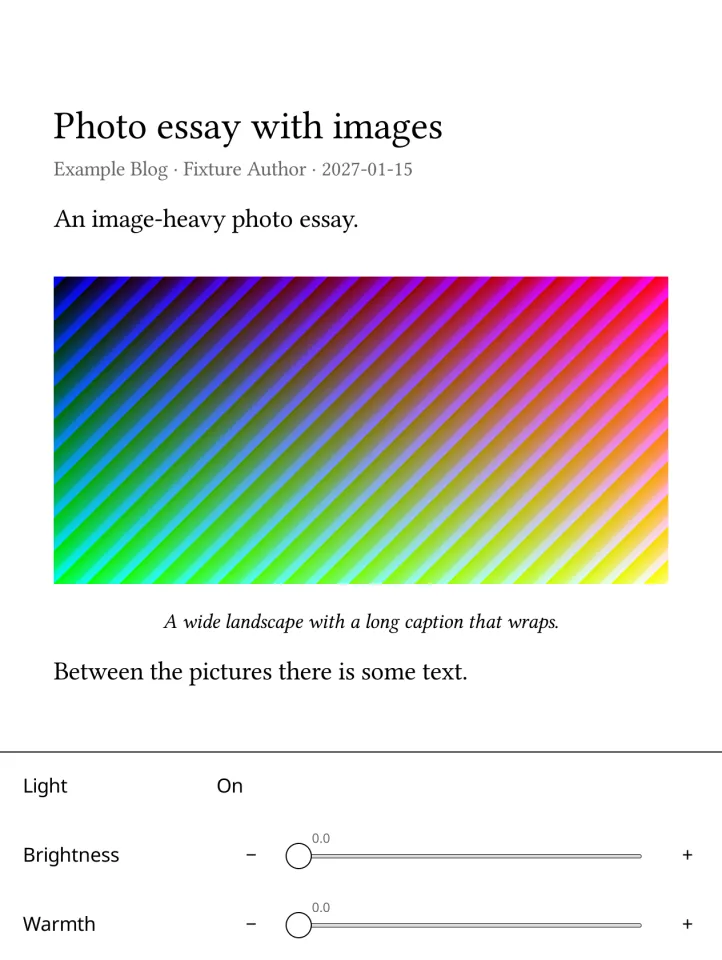
Starts with the light and Wi-Fi you had, a bottom light panel and an edge slide for brightness, page-turn buttons, and the normal Kobo interface back when you quit.

Organise from the couch

Tags, likes, broadcast, following feeds, folder management, monitoring searches and Send to Karakeep, as far as Inoreader's public API allows.

A look around

Screenshots from InoInk's emulator at the Libra Colour's resolution, using its built-in sample articles.

Get started

You need

  • A Kobo or a Tolino on Kobo firmware (developed on a Libra Colour, firmware 4.46.23852), ideally with NickelMenu for a launcher entry.
  • An Inoreader plan with API access and your own app registration: in Preferences > Developer API, click New application, choose Platform Other, Redirect URI http://localhost:8080/callback and scope Read and write, and note the App ID and App key.
  • A Mac or Linux computer for installing and signing in.

First five minutes

  • Tap a headline to read it, tap its ribbon to save it for later, hold it for its menu (mark read up to here, Archive, ...).
  • Tap the sides of a page (or the page-turn buttons) to turn it, the middle for the bar: Archive marks the article read and unstars it.
  • Changes reach Inoreader on their own over Wi-Fi. Quit from the main menu, and always before connecting the Kobo by USB.

Install

  1. Download the Kobo package, install-inoink.sh and inoink-cli from the latest release.
  2. Connect the Kobo by USB and run
    sh install-inoink.sh inoink-<version>-kobo.tar.gz /Volumes/KOBOeReader --menu
  3. Eject, open InoInk once from NickelMenu (it creates its own key and asks you to sign in), then quit it from its main menu.
  4. Connect the Kobo again and sign in from the computer. On a Mac, first run chmod +x inoink-cli-macos-arm64 and xattr -d com.apple.quarantine inoink-cli-macos-arm64 (the helper is not signed by Apple), then
    ./inoink-cli-macos-arm64 authorize --client-id YOUR_APP_ID --redirect-uri http://localhost:8080/callback --device /Volumes/KOBOeReader
    It asks for your App key and opens Inoreader in your browser to approve.
  5. Eject and open InoInk again. It syncs, and you are reading.

The setup guide covers every step, updates and removal.

Good to know